---
title: How to validate a range in my Flow form?
description: This article will guide you in validating a number range in your flow form.
---
[Skip to content](https://support.ofsystems.com/how-to-validate-a-range-in-my-flow-form#main-content)
![OFS\_Circle.png\]](https://support.ofsystems.com/hs-fs/hubfs/OFS_Circle.png?height=45&name=OFS_Circle.png)
- [OFS Customer Portal](https://support.ofsystems.com/)
- [Main Website](https://ofsystems.com/)
- [Contact Us](https://www.ofsystems.com/contact-us?)
- [Service Portal](https://ofsystems.atlassian.net/servicedesk/customer/portal/1)
Open main navigation
Close main navigation
- [OFS Customer Portal](https://support.ofsystems.com/)
- [Main Website](https://ofsystems.com/)
- [Contact Us](https://www.ofsystems.com/contact-us?)
- [Service Portal](https://ofsystems.atlassian.net/servicedesk/customer/portal/1)
Welcome to the OFS Customer Portal
- There are no suggestions because the search field is empty.
1. [OFS Customer Portal](https://support.ofsystems.com/?hsLang=en)
2. [How To Questions](https://support.ofsystems.com/how-to-questions?hsLang=en)
3. [Flow - Validations](https://support.ofsystems.com/how-to-questions?hsLang=en#flow-validations)
# How to validate a range in my Flow form?
## This article guides you through validating a number range in your flow form.
In this example, the field is valid between 5 and 15.
#### **Step 1 — Build the valid range condition**
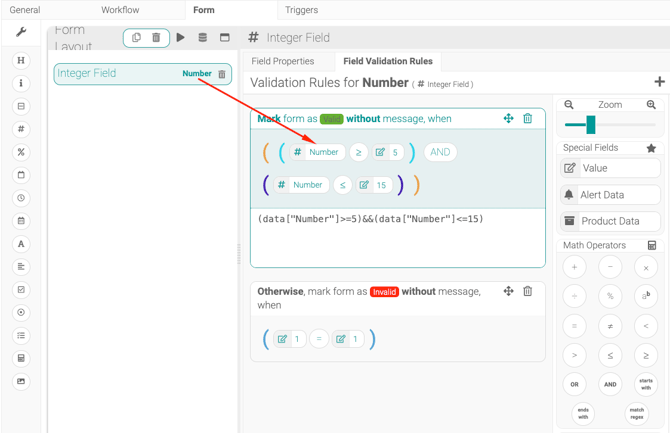
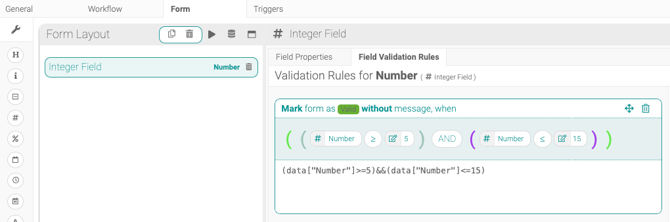
Drag in the field from the form layout, drag in the `≥` operator, and enter the minimum value, 5. Drag in the `AND` operator, drag the field in again, drag in the `≤` operator, and enter the maximum value, 15:
```
(data["Number"]>=5)&&(data["Number"]<=15)
```
- Dragging in the field from the form layout
- Drag in the 'greater than ≥' symbol
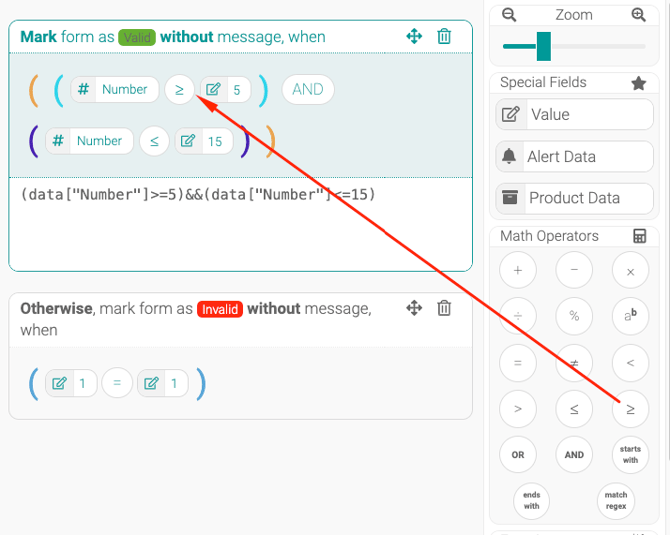
- Enter the minimum value 5
- Drag in the 'AND' operator
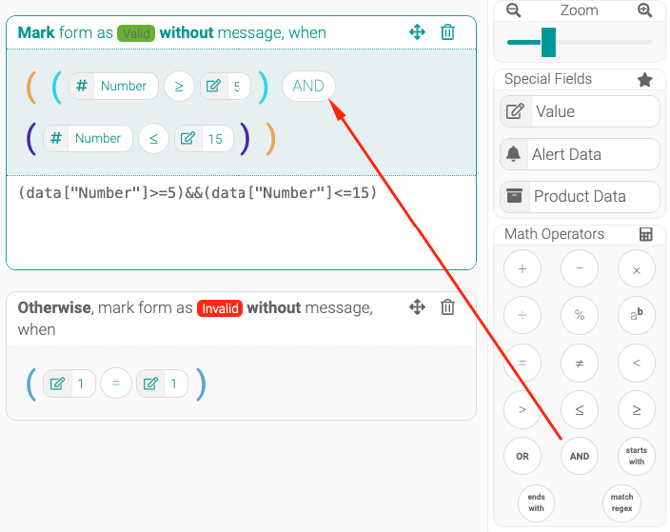
- Drag in the number field from the form layout
- Drag in the 'less than ≤' symbol
- Enter the minimum value 15
#### **Step 2 — Set the rule to Valid**
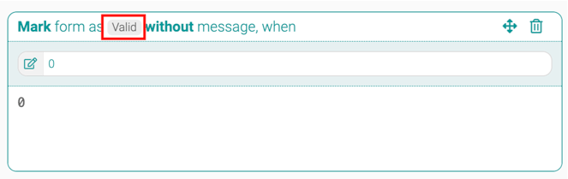
Click on the "Valid" word to configure the outcome.
#### **Step 3 — Set the status, colour, and message**
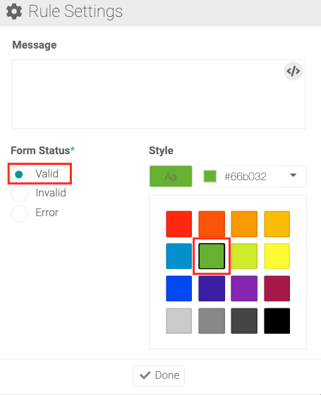
Set the Form Status, colour, and a message if needed.
**Note:** The Error status will not allow the user to submit the form until the field is valid.
****
#### **Step 4 — Add the catch-all invalid rule**
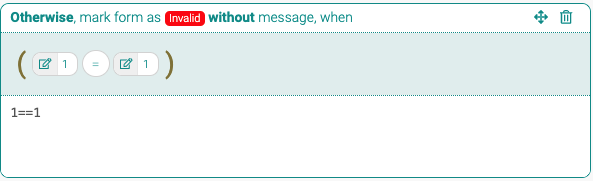
Invalidate everything outside the valid range:
```
1==1
```
- [Getting Started](https://support.ofsystems.com/getting-started?hsLang=en#main-content)
- [Console: The Basics](https://support.ofsystems.com/getting-started?hsLang=en#console-the-basics)
- [Analytics: The Basics](https://support.ofsystems.com/getting-started?hsLang=en#analytics-the-basics)
- [Fusion Manager: The Basics](https://support.ofsystems.com/getting-started?hsLang=en#fusion-manager-the-basics)
- [OFS-Flow Training : The Basics](https://support.ofsystems.com/getting-started?hsLang=en#ofs-flow-training-the-basics)
- [OFS-Go](https://support.ofsystems.com/getting-started?hsLang=en#ofs-go)
- [MayvnAI](https://support.ofsystems.com/getting-started?hsLang=en#mayvnai)
- [Help & Support](https://support.ofsystems.com/help-support?hsLang=en#main-content)
- [Troubleshooting](https://support.ofsystems.com/help-support?hsLang=en#troubleshooting)
- [OFS in a Box](https://support.ofsystems.com/help-support?hsLang=en#ofs-in-a-box)
- [Routers](https://support.ofsystems.com/help-support?hsLang=en#routers)
- [PLCs](https://support.ofsystems.com/help-support?hsLang=en#plcs)
- [Success with MayvnAI](https://support.ofsystems.com/success-with-mayvnai?hsLang=en)
- [Training Videos](https://support.ofsystems.com/training-videos?hsLang=en#main-content)
- [Operator Console](https://support.ofsystems.com/training-videos?hsLang=en#operator-console)
- [OFS Analytics](https://support.ofsystems.com/training-videos?hsLang=en#ofs-analytics)
- [Fusion-Manager](https://support.ofsystems.com/training-videos?hsLang=en#fusion-manager)
- [OFS-Flow](https://support.ofsystems.com/training-videos?hsLang=en#ofs-flow)
- [OFS-Go](https://support.ofsystems.com/training-videos?hsLang=en#ofs-go)
- [How To Questions](https://support.ofsystems.com/how-to-questions?hsLang=en#main-content)
- [Administration](https://support.ofsystems.com/how-to-questions?hsLang=en#administration)
- [Operator Console](https://support.ofsystems.com/how-to-questions?hsLang=en#operator-console)
- [Analytics](https://support.ofsystems.com/how-to-questions?hsLang=en#analytics)
- [Fusion Manager](https://support.ofsystems.com/how-to-questions?hsLang=en#fusion-manager)
- [Fusion Manager - Alerts & Services](https://support.ofsystems.com/how-to-questions?hsLang=en#fusion-manager-alerts-services)
- [Flow](https://support.ofsystems.com/how-to-questions?hsLang=en#flow)
- [Flow - Validations](https://support.ofsystems.com/how-to-questions?hsLang=en#flow-validations)
- [Flow - Conditional Expression & Triggers](https://support.ofsystems.com/how-to-questions?hsLang=en#flow-conditional-expression-triggers)
- [APIs](https://support.ofsystems.com/how-to-questions?hsLang=en#apis)
- [FAQs](https://support.ofsystems.com/faqs?hsLang=en#main-content)
- [Operator Console](https://support.ofsystems.com/faqs?hsLang=en#operator-console)
- [Fusion Manager](https://support.ofsystems.com/faqs?hsLang=en#fusion-manager)
- [Analytics](https://support.ofsystems.com/faqs?hsLang=en#analytics)
- [OFS-Flow](https://support.ofsystems.com/faqs?hsLang=en#ofs-flow)
- [Case Studies](https://support.ofsystems.com/case-studies?hsLang=en#main-content)
- [Mavyn AI](https://support.ofsystems.com/case-studies?hsLang=en#mavyn-ai)
- [OFS Guides](https://support.ofsystems.com/ofs-guides?hsLang=en)
- [Webinars](https://support.ofsystems.com/webinars?hsLang=en)
[](http://ofsystems.com)
Operations Feedback Pty Ltd
7/627 Chapel St, South Yarra, VIC 3123
+61 3 8684 9859
[mailto:support@ofsystems.com](mailto:support@ofsystems.com)
Copyright © 2025, Operations Feedback Systems Pty Ltd.