---
title: How to trigger an alert based on a downtime reason code
description: In OFS-Flow, you can set up alerts and flows to fire when a specific downtime reason is selected on the operator console. This is ideal for notifying maintenance or supervisors of critical issues.
---
[Skip to content](https://support.ofsystems.com/how-to-trigger-an-alert-based-on-a-downtime-reason-code#main-content)
![OFS\_Circle.png\]](https://support.ofsystems.com/hs-fs/hubfs/OFS_Circle.png?height=45&name=OFS_Circle.png)
- [OFS Customer Portal](https://support.ofsystems.com/)
- [Main Website](https://ofsystems.com/)
- [Contact Us](https://www.ofsystems.com/contact-us?)
- [Service Portal](https://ofsystems.atlassian.net/servicedesk/customer/portal/1)
Open main navigation
Close main navigation
- [OFS Customer Portal](https://support.ofsystems.com/)
- [Main Website](https://ofsystems.com/)
- [Contact Us](https://www.ofsystems.com/contact-us?)
- [Service Portal](https://ofsystems.atlassian.net/servicedesk/customer/portal/1)
Welcome to the OFS Customer Portal
- There are no suggestions because the search field is empty.
1. [OFS Customer Portal](https://support.ofsystems.com/?hsLang=en)
2. [How To Questions](https://support.ofsystems.com/how-to-questions?hsLang=en)
3. [Flow - Conditional Expression & Triggers](https://support.ofsystems.com/how-to-questions?hsLang=en#flow-conditional-expression-triggers)
# How to trigger an alert based on a downtime reason code
## Set up an alert that fires when an operator selects a specific downtime reason on the Operator Console, so maintenance or supervisors hear about critical stoppages straight away.
#### What you'll build
- An alert with a message that names the line and the reason that stopped it.
- A Machine State trigger filtered to one reason code, offset far enough into the stoppage that the operator has had time to allocate it.
#### **Step 1 — Create the alert**
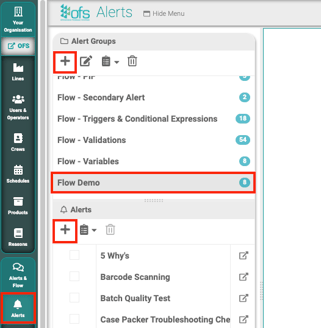
- Navigate to **Fusion Manager** \> **Alerts & Flow** \> **Alerts**
- Select an existing **Alert Group** or create a new one by clicking the **+** button
- Click the **+** button under the Alerts section and name your alert (e.g., "Critical Pump Failure Alert")
#### **Step 2 — Write the alert message**
In the **General** tab, enter the **Alert Message** that will be sent. Use the `` **Variables** picker to insert placeholders so the message carries the detail with it:
```
{{workcentre}} has stopped due to {{reason}}.
```
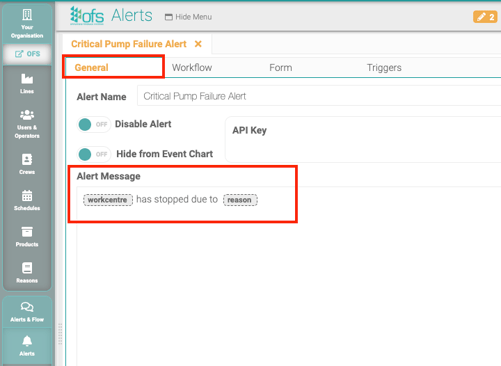
Each placeholder is replaced with the real value when the alert fires, so the recipient sees the line name and the reason rather than a generic message.
#### **Step 3 — Add the Machine State trigger**
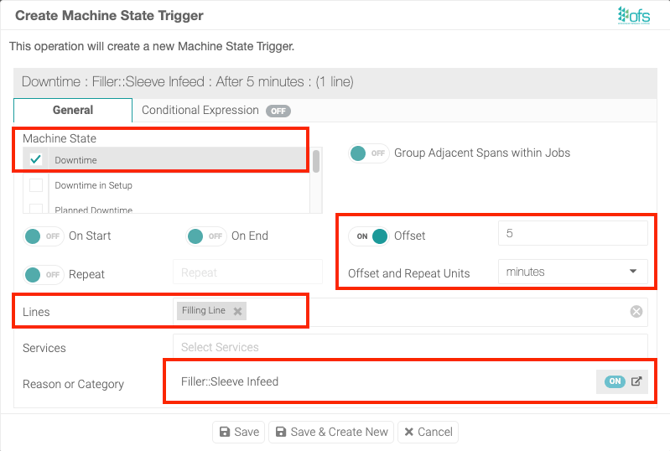
Go to the **Triggers** tab, click the **+** button and select **Machine State**. Choose the machine state you want to trigger from, for example **Downtime**.
- Go to the **Triggers** tab within your alert
- Click the **+** button and select **Machine State**
- Choose the specific machine state you want to trigger from (e.g., **Downtime**)
- Toggle **Offset** to **ON**
- Enter '5' for the number of minutes or the desired time
- Select the **Lines** this alert should apply to
- Click **Reason or Category** and toggle **ON**
- Select the **Reason Set** andselect the **Reason Code**
#### **Step 4 — Link to a service**
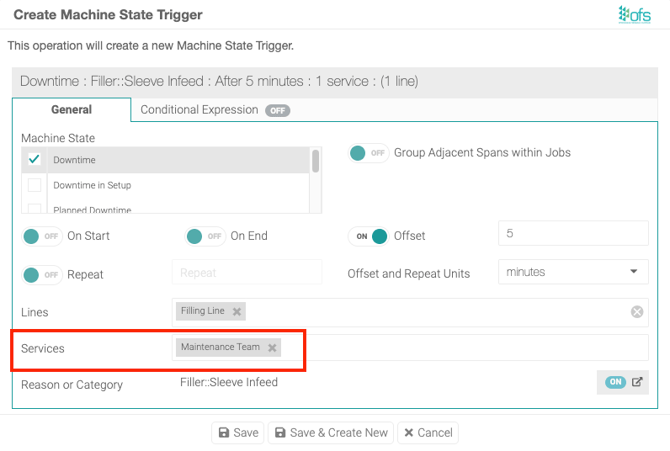
Still in the **Triggers** tab, select the **Service** — Email or SMS — that should receive the notification. Lines and services do different jobs: lines are what the trigger watches, services are where the message goes.
If you have not created a service yet, set one up in **Alerts & Flow** \> **Services**. There is a walkthrough in the [Alerts and Services](https://support.ofsystems.com/alerts-and-services?hsLang=en) article.
#### **Step 5 — Save**
Click **Update**, then **Save** on the page. The dialog's own button only stages the change.
---
#### ⚠️ **The Important Caveat (Operator Timing)**
There is a specific limitation when triggering alerts based on reasons:
- **The 30-Second Window:** When a line stops, the system initially records the state as "Unplanned". Operators have **30 seconds** to set the specific reason code for the alert to fire correctly based on that "Start" trigger.
- **The Workaround:** If your operators typically take longer than 30 seconds to allocate downtime, you should **offset** the trigger by 5 minutes. This allows the operator enough time to select the reason before the system checks to trigger the alert.
#### **Test it**
Stop the line and allocate the reason you configured. The alert should arrive once the offset has elapsed. If it does not, check in this order:
- A yellow **Unlicenced Lines** badge on the alert group, the alert or the trigger's Licence column. This is visible in the interface and costs nothing to rule out.
- **Disable Alert** on the General tab is off.
- The trigger has at least one line and one service.
- The Reason Set belongs to the same organisation as the lines.
#### **Adapting it to your own line**
- Lengthen the offset if your operators routinely take longer to allocate downtime. Too short and the alert misses; too long and the notification is late.
- You can add more than one trigger to the same alert, each filtered to a different reason code, if several reasons should produce the same notification.
- To alert on a whole group of reasons rather than one, select the category instead of the individual reason code.
- [Getting Started](https://support.ofsystems.com/getting-started?hsLang=en#main-content)
- [Console: The Basics](https://support.ofsystems.com/getting-started?hsLang=en#console-the-basics)
- [Analytics: The Basics](https://support.ofsystems.com/getting-started?hsLang=en#analytics-the-basics)
- [Fusion Manager: The Basics](https://support.ofsystems.com/getting-started?hsLang=en#fusion-manager-the-basics)
- [OFS-Flow Training : The Basics](https://support.ofsystems.com/getting-started?hsLang=en#ofs-flow-training-the-basics)
- [OFS-Go](https://support.ofsystems.com/getting-started?hsLang=en#ofs-go)
- [MayvnAI](https://support.ofsystems.com/getting-started?hsLang=en#mayvnai)
- [Help & Support](https://support.ofsystems.com/help-support?hsLang=en#main-content)
- [Troubleshooting](https://support.ofsystems.com/help-support?hsLang=en#troubleshooting)
- [OFS in a Box](https://support.ofsystems.com/help-support?hsLang=en#ofs-in-a-box)
- [Routers](https://support.ofsystems.com/help-support?hsLang=en#routers)
- [PLCs](https://support.ofsystems.com/help-support?hsLang=en#plcs)
- [Success with MayvnAI](https://support.ofsystems.com/success-with-mayvnai?hsLang=en)
- [Training Videos](https://support.ofsystems.com/training-videos?hsLang=en#main-content)
- [Operator Console](https://support.ofsystems.com/training-videos?hsLang=en#operator-console)
- [OFS Analytics](https://support.ofsystems.com/training-videos?hsLang=en#ofs-analytics)
- [Fusion-Manager](https://support.ofsystems.com/training-videos?hsLang=en#fusion-manager)
- [OFS-Flow](https://support.ofsystems.com/training-videos?hsLang=en#ofs-flow)
- [OFS-Go](https://support.ofsystems.com/training-videos?hsLang=en#ofs-go)
- [How To Questions](https://support.ofsystems.com/how-to-questions?hsLang=en#main-content)
- [Administration](https://support.ofsystems.com/how-to-questions?hsLang=en#administration)
- [Operator Console](https://support.ofsystems.com/how-to-questions?hsLang=en#operator-console)
- [Analytics](https://support.ofsystems.com/how-to-questions?hsLang=en#analytics)
- [Fusion Manager](https://support.ofsystems.com/how-to-questions?hsLang=en#fusion-manager)
- [Fusion Manager - Alerts & Services](https://support.ofsystems.com/how-to-questions?hsLang=en#fusion-manager-alerts-services)
- [Flow](https://support.ofsystems.com/how-to-questions?hsLang=en#flow)
- [Flow - Validations](https://support.ofsystems.com/how-to-questions?hsLang=en#flow-validations)
- [Flow - Conditional Expression & Triggers](https://support.ofsystems.com/how-to-questions?hsLang=en#flow-conditional-expression-triggers)
- [APIs](https://support.ofsystems.com/how-to-questions?hsLang=en#apis)
- [FAQs](https://support.ofsystems.com/faqs?hsLang=en#main-content)
- [Operator Console](https://support.ofsystems.com/faqs?hsLang=en#operator-console)
- [Fusion Manager](https://support.ofsystems.com/faqs?hsLang=en#fusion-manager)
- [Analytics](https://support.ofsystems.com/faqs?hsLang=en#analytics)
- [OFS-Flow](https://support.ofsystems.com/faqs?hsLang=en#ofs-flow)
- [Case Studies](https://support.ofsystems.com/case-studies?hsLang=en#main-content)
- [Mavyn AI](https://support.ofsystems.com/case-studies?hsLang=en#mavyn-ai)
- [OFS Guides](https://support.ofsystems.com/ofs-guides?hsLang=en)
- [Webinars](https://support.ofsystems.com/webinars?hsLang=en)
[](http://ofsystems.com)
Operations Feedback Pty Ltd
7/627 Chapel St, South Yarra, VIC 3123
+61 3 8684 9859
[mailto:support@ofsystems.com](mailto:support@ofsystems.com)
Copyright © 2025, Operations Feedback Systems Pty Ltd.