![OFS_Circle.png]](https://support.ofsystems.com/hs-fs/hubfs/OFS_Circle.png?height=45&name=OFS_Circle.png)
Step 1 — Navigate to Services
In Fusion Manager, go to Services.
Step 2 — Click the SMS tab
Step 3 — Add a new service
Click New Service.
[SCREENSHOT: New Service button on the SMS tab]
Step 4 — Enter the title of the service
Give it a name that identifies what it's for, e.g. Downtime SMS.
Step 5 — Select the country code
Step 6 — Enter the recipient's phone number
Step 7 — Enter a backup email address
The backup email receives the alert message if the SMS fails to send.
Step 8 — Enter the message you want the recipient to receive
If you want the message to include the text from the alert itself, add {{message}} to the message field.
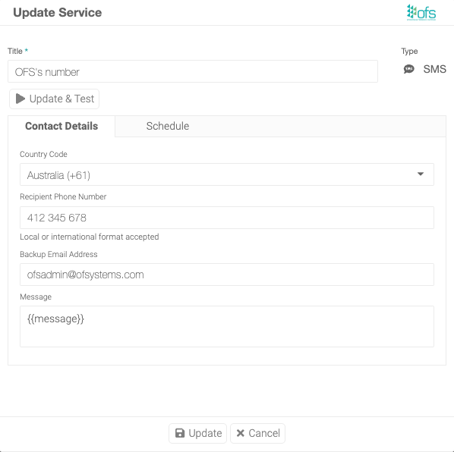
Step 9 — Click Update & Test
This confirms the details you've entered are valid.
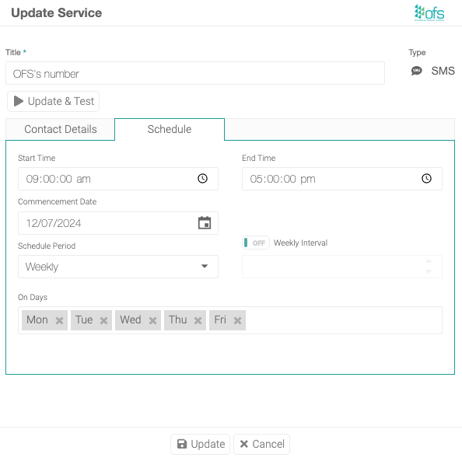
Step 10 — Set the hours the participant receives alerts on the Schedule tab
The Schedule tab restricts the SMS to specific hours and days — for example, only sending between 9am and 5pm, Monday to Friday.
If you'd like to discuss how SMS services are managed for your account, speak with your OFS sales representative.
For a video summary on configuring Alerts & Services, see the Alerts & Services overview. Release notes for this feature are here.