![OFS_Circle.png]](https://support.ofsystems.com/hs-fs/hubfs/OFS_Circle.png?height=45&name=OFS_Circle.png)
By default, a service sends at all times. The Schedule tab lets you narrow that down to specific days and hours.
Step 1 — Go to Services
In Fusion Manager, go to Services and open the service whose hours you want to set.
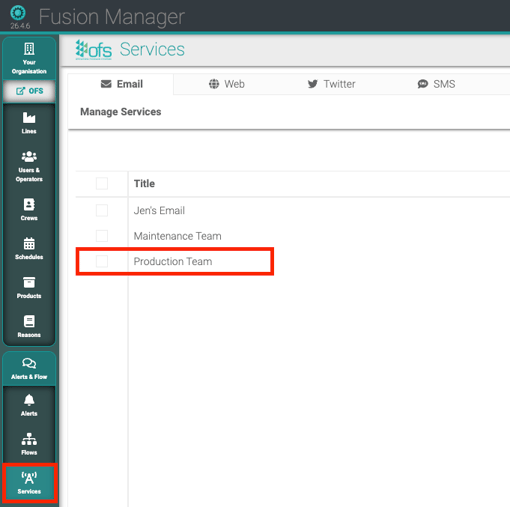
Step 2 — Select the participant and open the Schedule tab
Step 3 — Tick the days the participant should receive alerts
Step 4 — Enter the start and end time for each ticked day
For a standard weekday schedule, set:
- Monday – Friday:
09:00to17:00 - Saturday – Sunday: unticked
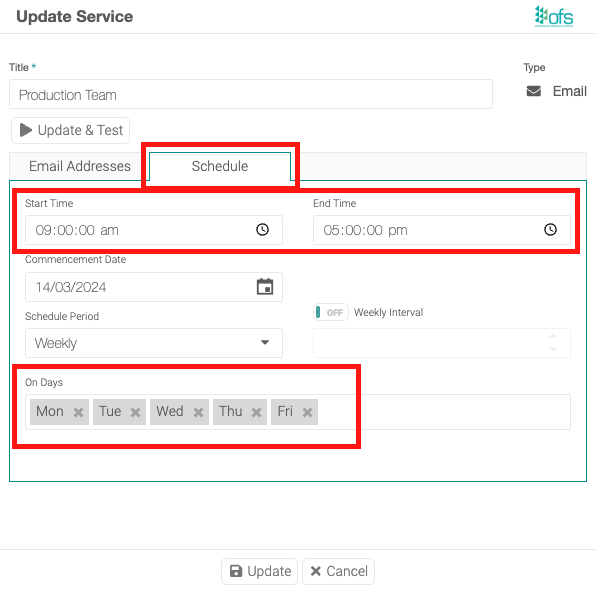
Step 5 — Click Update, then Save
Update stages the schedule; Save on the page commits it. The participant will now only receive alerts that fire inside the window you've set.
Adapting it to your own schedule
If shifts run across midnight, one Start/End time pair per service can't cover the overnight window in a single step. Set up two services and schedules instead — one ending at 23:59 and one starting at 00:00 the following day.