![OFS_Circle.png]](https://support.ofsystems.com/hs-fs/hubfs/OFS_Circle.png?height=45&name=OFS_Circle.png)
Step 1 — Start with the Multiline base URL
Replace customername with your organisation's name:
- https://customername.ofsxpress.com/apps/multiline/?
Step 2 — Add a tab for each line
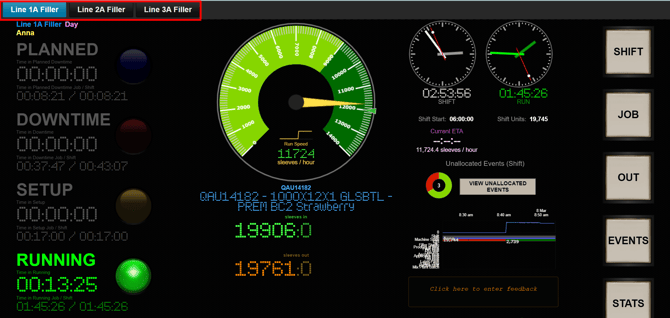
Each line is one Tab Name=/LINEID/console/ pair, and pairs are joined with &:
- Line 1A Filler=/OFS001/console/&Line 2A Filler=/OFS002/console/
The text before the = is the tab label. The text after it is the line's workcentre ID.
Type the tab label exactly as the line name appears in OFS, spaces included — for example Line 1A Filler. Google Chrome converts those spaces to %20 in the address bar on its own, so you do not need to.
Step 3 — Join the two halves and open the address
-
https://demo.ofsxpress.com/apps/multiline/?Line 1A Filler=/OFS001/console/&Line 2A Filler=/OFS002/console/
Add as many lines as you need by repeating the pattern in Step 2, separated by &.
Step 4 — Save the finished link
Bookmark the completed URL, or add it to the device's home screen, so operators are not rebuilding it each shift. It is worth sending the finished link to the people who need it rather than the instructions.