![OFS_Circle.png]](https://support.ofsystems.com/hs-fs/hubfs/OFS_Circle.png?height=45&name=OFS_Circle.png)
What you'll build
A form where the operator's first action is picking the job it applies to — useful for quality checks written up after a changeover, or rework notes raised at the end of a shift for a run that finished hours ago.
Job Override is one of two job fields in the OFS-Flow form builder. Its companion, the Job Context Selector, is covered in How to reference a previous job in validation using the Job Context Selector.
Before you start: Job Override needs to be switched on for your environment before it appears in the form builder. If you can't see it, contact your OFS Sales Contact to get it enabled.
Step 1 — Add a Job Override field to your form
Open your alert in Fusion Manager → Alerts & Flow, select it, and go to the Form tab.
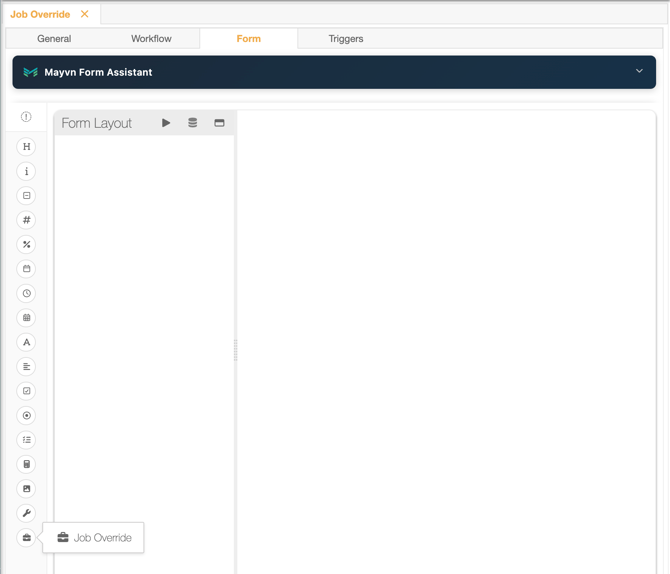
The field toolbox runs down the left-hand side. Job Override is the briefcase icon at the very bottom. Click it once to add the field to your form layout.
Step 2 — Put Job Override first
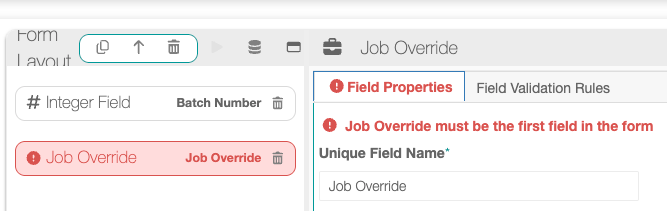
Job Override must be the first field in the form. If it isn't, the form builder shows an error and won't let you save.
Drag the field to the top of the layout to fix this — if the drag doesn't take, delete the job fields, add Job Override onto an empty canvas first, then add your other fields underneath it.
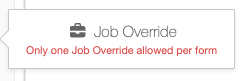
Only one Job Override field is allowed per form; the builder blocks a second one.
Step 3 — Configure the field properties
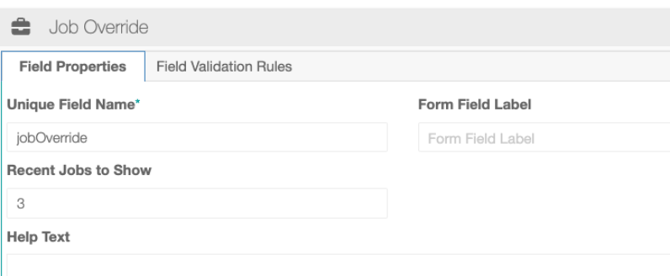
Select the Job Override field to open its Field Properties panel.
| Property | What it does |
|---|---|
| Unique Field Name | Required. The name you'll use to reference this field in validation rules and in exported data. |
| Recent Jobs to Show | How many recent jobs appear in the operator's picker. Three is a sensible starting point. |
| Form Field Label | Optional. The wording the operator sees above the picker. Leave it blank and the operator sees the Unique Field Name instead — worth filling in. |
| Help Text | Optional. A line of guidance shown with the field. |
There is deliberately no Required toggle. Job Override is always mandatory — that's the point of the field.
Save the alert when you're done. Use the alert-level Save button at the top right, and save before you move to another module — navigating away from Alerts & Flow discards unsaved changes on the tab without warning.
Step 4 — Check what the operator sees
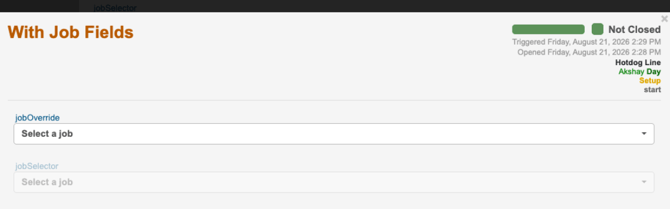
On the console and in the OFS Flow Form, Job Override renders as a Select a job picker at the top of the form.
Opening it lists the most recent jobs for that line — the number you set in Recent Jobs to Show. Each entry shows the line, the job's start and finish times, and the SKU with its description. The job currently running is marked ACTIVE.

The operator picks the job the form is about, then completes the rest of the form as normal.
Nothing is saved until the operator submits the form to a workstate. Choosing a job, typing answers and attaching photos all stay on the device until the form is submitted. Closing the form loses everything entered.
Using Job Override alongside the Job Context Selector
Both job fields can go on the same form: Job Override first, then one or more Job Context Selectors.
When you do, the Job Context Selector fields stay greyed out until the operator has chosen a job in Job Override. They become editable the moment a job is selected.
One design consequence worth knowing
A form card in the Flow feed normally shows the job's SKU and description in its header, alongside the line, operator and crew.
Adding job fields removes that header line. The job identity moves entirely into the picker, so a form with a Job Override doesn't give the operator the same at-a-glance job context from the header.
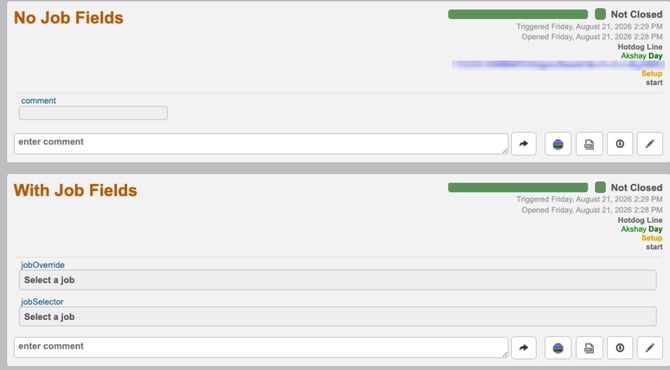
Two Flow cards side by side: one without job fields showing the SKU in the header, one with job fields showing pickers instead.
It's not a fault, but it does change what the operator sees at a glance. If your form is one where the running job matters for context, consider adding a Form Field Label that makes the choice obvious — something like "Which job is this check for?"
Need a hand?
If the Job Override icon isn't appearing, or you're not sure whether Job Override or the Job Context Selector is the right field for what you're building, get in touch through the OFS Customer Portal — we're happy to talk it through.