![OFS_Circle.png]](https://support.ofsystems.com/hs-fs/hubfs/OFS_Circle.png?height=45&name=OFS_Circle.png)
For example: the machine might go into unplanned downtime (labeller breakdown) and then another downtime (filler breakdown).
For example, the line stops for a labeller breakdown, and while that is being fixed the filler goes down too. Recording both gives a truer picture than putting the whole stoppage down to one of them.
Step 1 — Set the first reason as normal
Select the category, select the reason, press Set Reason.
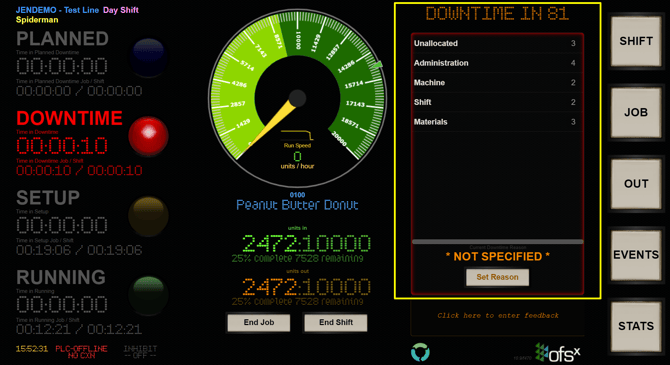
Step 2 — Select the next reason when the cause changes
When the cause of the stoppage changes, go back to the reason panel and set the new reason the same way. OFS starts recording against it straight away.
[VIDEO: https://player.vimeo.com/video/954237996?app_id=122963]
What OFS records
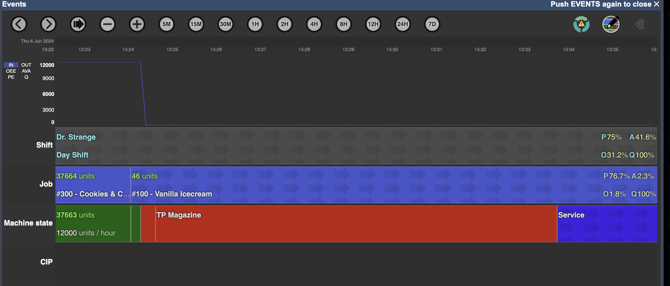
Setting a second reason closes the first span at that moment and opens a new one. The time already accrued stays with the first reason, and the clock starts again on the second.
Reasons run one after another, never side by side. You cannot have the same ten minutes counted against two reasons, which is why the moment you switch matters — set the new reason when the cause actually changes, not when the stoppage ends.
On the Events Chart the stoppage then appears as two adjacent spans, each with its own label and duration.
Splitting a stoppage after the event
If the line is already running again and you need to divide a recorded stoppage between two reasons, use Split in the Edits Tool on the Events Chart. Split the span at the point the cause changed, then allocate each half. You need an Administrator or Analytics User with Editor role.
Watch the video below: