---
title: How to fire a trigger only for certain products using a conditional expression
description: Set a condition on a trigger so it only fires when the job, shift or product matches a rule you define, using match regex to check text like an order description.
---
[Skip to content](https://support.ofsystems.com/how-to-fire-a-trigger-only-for-certain-products-using-a-conditional-expression#main-content)
![OFS\_Circle.png\]](https://support.ofsystems.com/hs-fs/hubfs/OFS_Circle.png?height=45&name=OFS_Circle.png)
- [OFS Customer Portal](https://support.ofsystems.com/)
- [Main Website](https://ofsystems.com/)
- [Contact Us](https://www.ofsystems.com/contact-us?)
- [Service Portal](https://ofsystems.atlassian.net/servicedesk/customer/portal/1)
Open main navigation
Close main navigation
- [OFS Customer Portal](https://support.ofsystems.com/)
- [Main Website](https://ofsystems.com/)
- [Contact Us](https://www.ofsystems.com/contact-us?)
- [Service Portal](https://ofsystems.atlassian.net/servicedesk/customer/portal/1)
Welcome to the OFS Customer Portal
- There are no suggestions because the search field is empty.
1. [OFS Customer Portal](https://support.ofsystems.com/?hsLang=en)
2. [How To Questions](https://support.ofsystems.com/how-to-questions?hsLang=en)
3. [Flow - Conditional Expression & Triggers](https://support.ofsystems.com/how-to-questions?hsLang=en#flow-conditional-expression-triggers)
# How to fire a trigger only for certain products using a conditional expression
## Set a condition on a trigger so it only fires when the job, shift or product matches a rule you define, using match regex to check text like an order description.
#### **What you'll build**
- A trigger that fires on every job start, but only when the product meets a condition you set.
- A condition that checks the text in a field, so one trigger covers a whole product group instead of a list of individual SKUs.
#### **Step 1 — Work out which products need the check**
Start with the outcome, not the rule. Take a plastic bottle check that only applies to PET products:
| Order description | Bottle type | Check needed? |
| --- | --- | --- |
| CHERRY-GLSBTL300 | Glass | No |
| CHERRY-PETBTL300 | PET | Yes |
| LIME-GLSBTL300 | Glass | No |
| LIME-PETBTL300 | PET | Yes |
The products that need the check all have `PET` somewhere in the order description. That shared piece of text is what the condition will look for.
#### **Step 2 — Open the trigger and turn on the conditional expression**
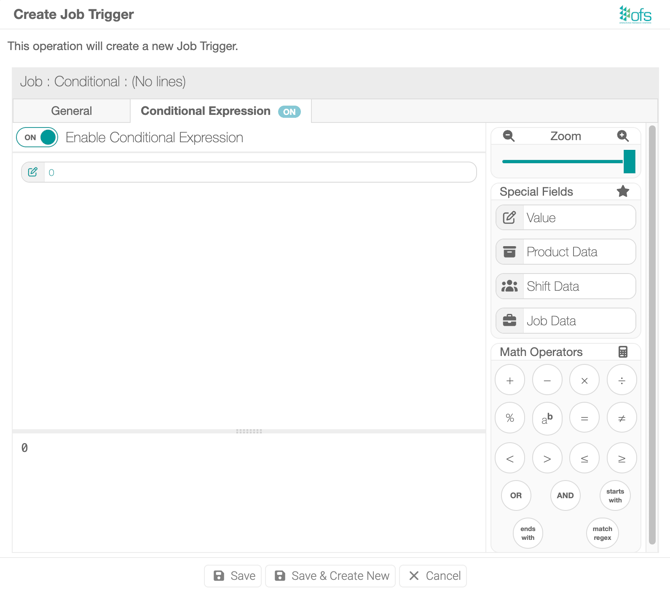
Any Job, Shift, State or Relay trigger can have a condition added. Open the trigger, go to the **Conditional Expression** tab, and switch **Enable Conditional Expression** to on.
The condition looks at the metadata for the job, shift or product. When the condition is true the trigger fires. When it is false, nothing happens.
#### **Step 3 — Build the condition**
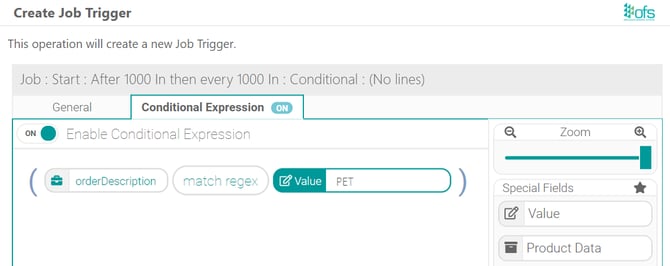
The expression is built from three parts, left to right:
- The field you want to check, chosen from **Product Data** or **Special Fields**. In this example, `orderDescription`.
- The operator. In this example, **match regex**.
- The value to look for, entered under **Value**. In this example, `PET`.
Read the finished rule as a sentence: when the order description contains `PET`, the expression is true and the trigger fires.
#### **Step 4 — Save and check the trigger summary**
Save the trigger. The summary line at the top of the trigger window shows the trigger type, the timing and that a condition is applied, for example a job start trigger set to run after 1000 In, then every 1000 In, marked as conditional.
---
#### **What match regex is doing**
**match regex** works like the Find tool in a word processor: it searches the field for the text you give it. It is far more capable than a plain Find, because it matches a *pattern* rather than fixed text.
That matters when you do not know the exact value in advance. Compare these:
| Input | Expression | Match? |
| --- | --- | --- |
| CHERRY-GLSBTL300 | `PET` | No |
| CHERRY-PETBTL300 | `PET` | Yes |
| CHERRY-1GLSBTL330 | `\d{3}` | Yes |
| CHERRY-2GLSBTL650 | `\d{3}` | Yes |
In the last two rows, `\d` stands for any digit and `{3}` means three of them in a row. The pattern matches both codes even though the numbers differ.
A few patterns that cover most factory cases:
- `\d` any digit, `[A-Z]` any uppercase letter, `[A-Z0-9]` any uppercase letter or digit.
- `{3}` exactly three of the preceding item.
- `^` start of the text, `$` end of the text.
**Regex Cheat Sheet**
.png?width=670&height=1029&name=ofs-regex-cheatsheet%20(1).png)
---
#### **Adapting it to your own products**
- Swap `orderDescription` for whichever field carries the text you need to test. The fields available depend on the product data your site sends to OFS.
- Choose a piece of text that is present in every product that needs the check, and absent from every product that does not. If your product codes do not share a clean marker, add one to the product data rather than building a long expression.
- A condition can be added to Shift and State triggers the same way, so the same approach works for checks tied to a shift or a downtime state.
- [Getting Started](https://support.ofsystems.com/getting-started?hsLang=en#main-content)
- [Console: The Basics](https://support.ofsystems.com/getting-started?hsLang=en#console-the-basics)
- [Analytics: The Basics](https://support.ofsystems.com/getting-started?hsLang=en#analytics-the-basics)
- [Fusion Manager: The Basics](https://support.ofsystems.com/getting-started?hsLang=en#fusion-manager-the-basics)
- [OFS-Flow Training : The Basics](https://support.ofsystems.com/getting-started?hsLang=en#ofs-flow-training-the-basics)
- [OFS-Go](https://support.ofsystems.com/getting-started?hsLang=en#ofs-go)
- [MayvnAI](https://support.ofsystems.com/getting-started?hsLang=en#mayvnai)
- [Help & Support](https://support.ofsystems.com/help-support?hsLang=en#main-content)
- [Troubleshooting](https://support.ofsystems.com/help-support?hsLang=en#troubleshooting)
- [OFS in a Box](https://support.ofsystems.com/help-support?hsLang=en#ofs-in-a-box)
- [Routers](https://support.ofsystems.com/help-support?hsLang=en#routers)
- [PLCs](https://support.ofsystems.com/help-support?hsLang=en#plcs)
- [Success with MayvnAI](https://support.ofsystems.com/success-with-mayvnai?hsLang=en)
- [Training Videos](https://support.ofsystems.com/training-videos?hsLang=en#main-content)
- [Operator Console](https://support.ofsystems.com/training-videos?hsLang=en#operator-console)
- [OFS Analytics](https://support.ofsystems.com/training-videos?hsLang=en#ofs-analytics)
- [Fusion-Manager](https://support.ofsystems.com/training-videos?hsLang=en#fusion-manager)
- [OFS-Flow](https://support.ofsystems.com/training-videos?hsLang=en#ofs-flow)
- [OFS-Go](https://support.ofsystems.com/training-videos?hsLang=en#ofs-go)
- [How To Questions](https://support.ofsystems.com/how-to-questions?hsLang=en#main-content)
- [Administration](https://support.ofsystems.com/how-to-questions?hsLang=en#administration)
- [Operator Console](https://support.ofsystems.com/how-to-questions?hsLang=en#operator-console)
- [Analytics](https://support.ofsystems.com/how-to-questions?hsLang=en#analytics)
- [Fusion Manager](https://support.ofsystems.com/how-to-questions?hsLang=en#fusion-manager)
- [Fusion Manager - Alerts & Services](https://support.ofsystems.com/how-to-questions?hsLang=en#fusion-manager-alerts-services)
- [Flow](https://support.ofsystems.com/how-to-questions?hsLang=en#flow)
- [Flow - Validations](https://support.ofsystems.com/how-to-questions?hsLang=en#flow-validations)
- [Flow - Conditional Expression & Triggers](https://support.ofsystems.com/how-to-questions?hsLang=en#flow-conditional-expression-triggers)
- [APIs](https://support.ofsystems.com/how-to-questions?hsLang=en#apis)
- [FAQs](https://support.ofsystems.com/faqs?hsLang=en#main-content)
- [Operator Console](https://support.ofsystems.com/faqs?hsLang=en#operator-console)
- [Fusion Manager](https://support.ofsystems.com/faqs?hsLang=en#fusion-manager)
- [Analytics](https://support.ofsystems.com/faqs?hsLang=en#analytics)
- [OFS-Flow](https://support.ofsystems.com/faqs?hsLang=en#ofs-flow)
- [Case Studies](https://support.ofsystems.com/case-studies?hsLang=en#main-content)
- [Mavyn AI](https://support.ofsystems.com/case-studies?hsLang=en#mavyn-ai)
- [OFS Guides](https://support.ofsystems.com/ofs-guides?hsLang=en)
- [Webinars](https://support.ofsystems.com/webinars?hsLang=en)
[](http://ofsystems.com)
Operations Feedback Pty Ltd
7/627 Chapel St, South Yarra, VIC 3123
+61 3 8684 9859
[mailto:support@ofsystems.com](mailto:support@ofsystems.com)
Copyright © 2025, Operations Feedback Systems Pty Ltd.