---
title: How to create a setup expiry (with variations)
description: The ‘Setup Expiry’ solution allows you to track when a job ‘Setup’ exceeds a set target time. Once a setup time has expired, OFS automatically transitions to a predefined unplanned downtime reason.
---
[Skip to content](https://support.ofsystems.com/how-to-create-a-setup-expiry-with-variations#main-content)
![OFS\_Circle.png\]](https://support.ofsystems.com/hs-fs/hubfs/OFS_Circle.png?height=45&name=OFS_Circle.png)
- [OFS Customer Portal](https://support.ofsystems.com/)
- [Main Website](https://ofsystems.com/)
- [Contact Us](https://www.ofsystems.com/contact-us?)
- [Service Portal](https://ofsystems.atlassian.net/servicedesk/customer/portal/1)
Open main navigation
Close main navigation
- [OFS Customer Portal](https://support.ofsystems.com/)
- [Main Website](https://ofsystems.com/)
- [Contact Us](https://www.ofsystems.com/contact-us?)
- [Service Portal](https://ofsystems.atlassian.net/servicedesk/customer/portal/1)
Welcome to the OFS Customer Portal
- There are no suggestions because the search field is empty.
1. [OFS Customer Portal](https://support.ofsystems.com/?hsLang=en)
2. [How To Questions](https://support.ofsystems.com/how-to-questions?hsLang=en)
3. [Fusion Manager - Alerts & Services](https://support.ofsystems.com/how-to-questions?hsLang=en#fusion-manager-alerts-services)
# How to create a setup expiry (with variations)
## The ‘Setup Expiry’ solution allows you to track when a job ‘Setup’ exceeds a set target time. Once a setup time has expired, OFS automatically transitions to an unplanned downtime reason.
#### **What you'll build**
Four pieces work together. All four have to exist before anything happens.
- A service user, so the alert can authenticate back into OFS.
- An unplanned downtime reason, which the line moves to when the setup expires.
- A web service, which is the call that performs the move.
- An alert trigger, which watches the setup and fires the web service once the target time is passed.
If your target setup time is the same across every SKU, Steps 1 to 10 are all you need. If it varies by SKU, continue from Step 11.
**Note:** If a new shift or job is started during a setup, the counter will reset.
When OFS transitions out of setup into another downtime or running, the counter will also reset.
---
#### **Step 1 — Create the service user**
The web service in Step 4 authenticates as this user, so it needs to exist first. Navigate to the **Users & Operators** tab and add a user:
- Name: Alert Expiry
- Login: Alert
- Password: set one and record it for Step 6
- Role: Analytics User
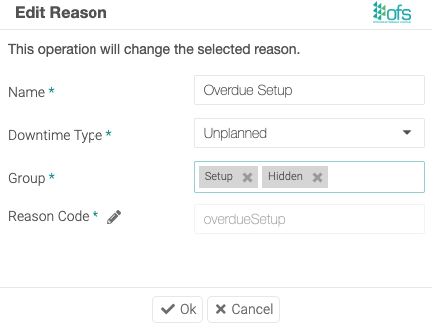
#### **Step 2 — Create the downtime reason**
Create the unplanned downtime reason in your reason list in **Fusion Manager**:
- Name it, for example Overdue Setup
- Downtime Type: Unplanned
- Group: Setup & Hidden
- Reason Code: rename it if you want a code that's easier to read
Click the pencil icon and copy the reason code. You need it in Step 5.
#### **Step 3 —** **Assign the reason to your lines**
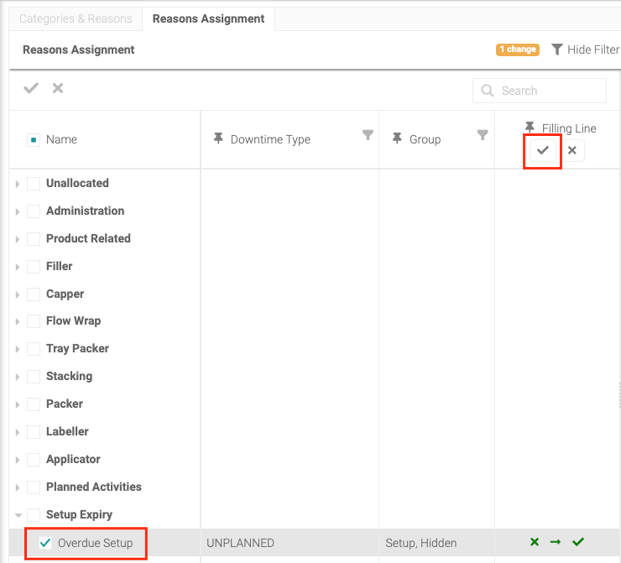
Open **Reasons Assignment** and assign the new reason to every line that will use the setup expiry.
#### **Step 4 —** **Create the web service**
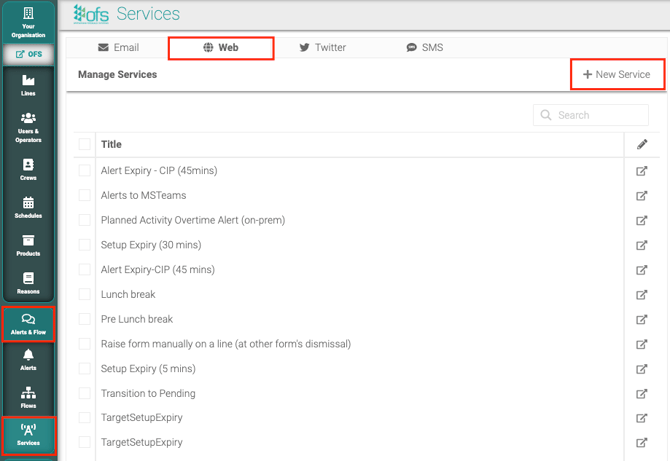
Navigate to the **Services** tab, click **Web**, and create a **New Service**.
#### **Step 5 —** **Enter the service URL**
In the **URL** field, enter the following:
http://localhost/{{workcentre}}/server/control/downtime/allocate/@reasoncode
- Replace `@reasoncode` with the reason code you copied in Step 2.
- Leave `{{workcentre}}` exactly as it is, so the call is directed at the line that triggered the alert.
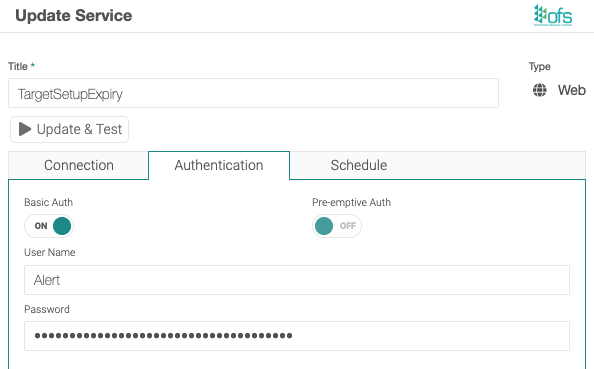
#### **Step 6 —** **Add authentication**
Navigate to the **Authentication** tab and enter the login and password from Step 1.
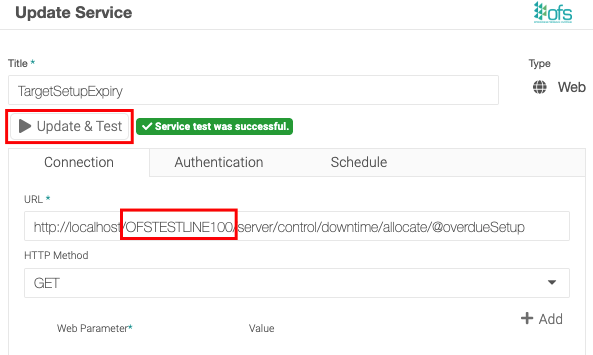
#### **Step 7 — Update and test the service**
To test the service you need a real line in the URL, because the placeholder only resolves when an alert fires.
- Temporarily replace `{{workcentre}}` with a workcentre ID, for example `OFS001`.
- Click **Update** and run the test.
- Change it back to `{{workcentre}}` once the test passes, and update again.
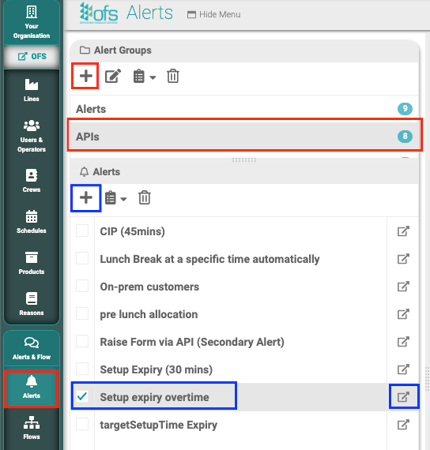
#### **Step 8 — Create the alert group and alert**
Navigate to **Alerts & Flow**:
- Create a dedicated alert group, for example Alert Expiries
- Inside that group, create a new alert and name it
- Click the expand icon to edit the alert
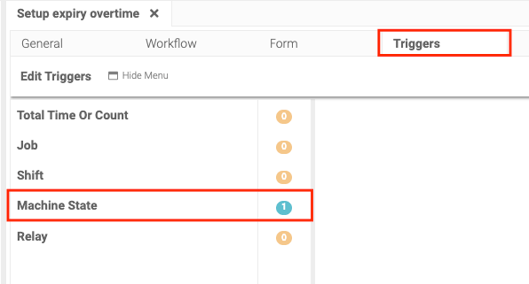
#### **Step 9 — Add a machine state trigger**
In the alert, go to the **Triggers** tab, click **Machine State**, then click the **+** to add a trigger.
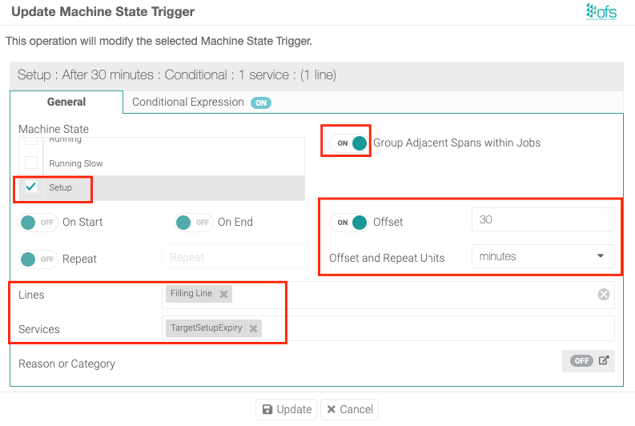
#### **Step 10 — Configure the trigger**
Fill in the following:
- Machine State: tick **Setup**
- Toggle on **Group Adjacent Spans within Jobs**
- Toggle on **Offset** and enter the target setup time
- Set the units: minutes, hours or counts
- Select the lines
- Select the service you created in Step 4
If every SKU on the line shares the same target setup time, you're finished. Skip to **Test it**.
---
#### **If setup times vary by SKU**
Steps 11 to 15 add a target setup time per product and one trigger per variation. Read all five before you start, because the offset in Step 10 and the value in Step 14 have to agree.
#### **Step 11 — Add the target setup time to the products list**
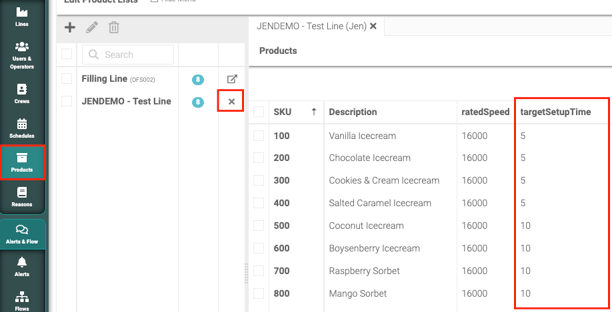
In the products list, fill in the `targetSetupTime` column for each SKU.
Enter the value in the same units you selected in Step 10. If the trigger offset is set in minutes, `targetSetupTime` is in minutes.
#### **Step 12 — Make the field editable for operators (optional)**
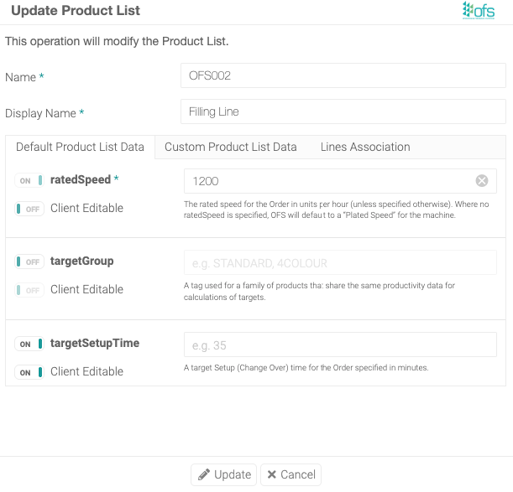
Use this when the setup time isn't known in advance and the operator sets it at the start of the job.
- Navigate to **Products**
- Tick the line
- Click the pencil icon
- Under **Default Product List Data**, toggle on `targetSetupTime`, then toggle on **Client Editable**
#### **Step 13 — Enter the target setup time on the Operator Console**
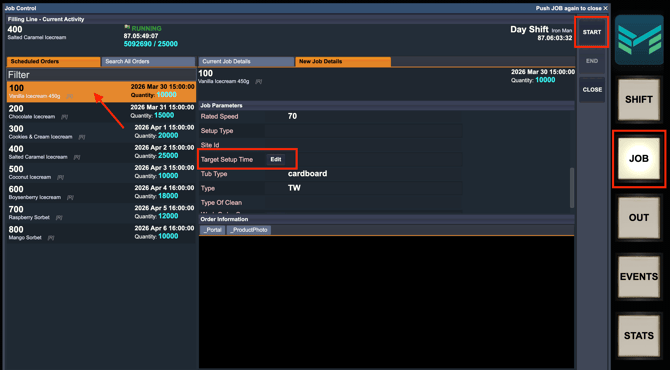
Only needed if you turned on **Client Editable** in Step 12. Until an operator enters a value, the field is blank and no trigger will match.
On the **Operator Console**, press the **JOB** button, select the job, enter the target setup time in the `targetSetupTime` field, and save.
- Enter the value at the start of the job. The trigger reads the value from the job, so a setup that begins before the value is entered won't be picked up.
- Enter it in the same units as the trigger offset in Step 10.
- The value has to match one of your triggers exactly. If you've built triggers for 30, 60 and 90 minutes and an operator enters 45, nothing fires.
#### **Step 14 — Add the conditional expression to the trigger**
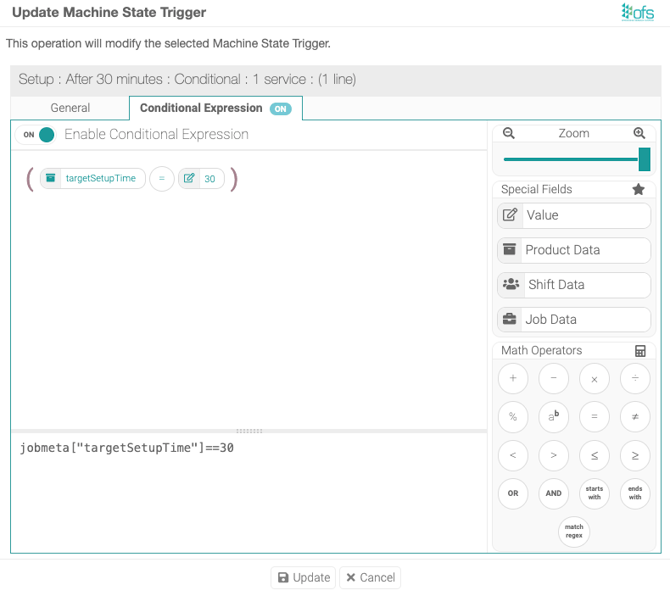
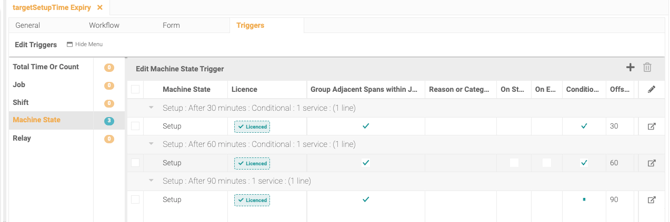
In the alert trigger, go to **Conditional Expression**, toggle it on, and enter the expression. Change the value to match the setup target time for this trigger:
```
jobmeta["targetSetupTime"]==30
```
The number in this expression and the **Offset** you set in Step 10 must be the same. The expression decides which jobs the trigger applies to, and the offset decides how long it waits. A trigger with a 30 minute offset and an expression looking for 60 will not behave as intended.
#### **Step 15 — Repeat for every variation**
Create one trigger per setup time you use. For 30, 60 and 90 minute setups you need three triggers, each with its own offset and its own conditional expression. Follow Step 9 onwards for each one.
---
#### **Test it**
On a line you've configured:
- Put the line into setup and leave it there past the target time.
- Confirm the line moves into your unplanned downtime reason, for example Overdue Setup.
- Check the downtime appears in **Analytics** against that reason.
If nothing happens, work through these in order:
- The reason isn't assigned to that line (Step 3).
- The service test failed, or `{{workcentre}}` was left as a hard coded workcentre ID after testing (Step 7).
- The SKU has no `targetSetupTime` value, or it doesn't match any trigger (Steps 11 and 13).
- The trigger offset and the conditional expression value don't match (Step 14).
- A new job or shift started mid setup, which resets the counter.
- [Getting Started](https://support.ofsystems.com/getting-started?hsLang=en#main-content)
- [Console: The Basics](https://support.ofsystems.com/getting-started?hsLang=en#console-the-basics)
- [Analytics: The Basics](https://support.ofsystems.com/getting-started?hsLang=en#analytics-the-basics)
- [Fusion Manager: The Basics](https://support.ofsystems.com/getting-started?hsLang=en#fusion-manager-the-basics)
- [OFS-Flow Training : The Basics](https://support.ofsystems.com/getting-started?hsLang=en#ofs-flow-training-the-basics)
- [OFS-Go](https://support.ofsystems.com/getting-started?hsLang=en#ofs-go)
- [MayvnAI](https://support.ofsystems.com/getting-started?hsLang=en#mayvnai)
- [Help & Support](https://support.ofsystems.com/help-support?hsLang=en#main-content)
- [Troubleshooting](https://support.ofsystems.com/help-support?hsLang=en#troubleshooting)
- [OFS in a Box](https://support.ofsystems.com/help-support?hsLang=en#ofs-in-a-box)
- [Routers](https://support.ofsystems.com/help-support?hsLang=en#routers)
- [PLCs](https://support.ofsystems.com/help-support?hsLang=en#plcs)
- [Success with MayvnAI](https://support.ofsystems.com/success-with-mayvnai?hsLang=en)
- [Training Videos](https://support.ofsystems.com/training-videos?hsLang=en#main-content)
- [Operator Console](https://support.ofsystems.com/training-videos?hsLang=en#operator-console)
- [OFS Analytics](https://support.ofsystems.com/training-videos?hsLang=en#ofs-analytics)
- [Fusion-Manager](https://support.ofsystems.com/training-videos?hsLang=en#fusion-manager)
- [OFS-Flow](https://support.ofsystems.com/training-videos?hsLang=en#ofs-flow)
- [OFS-Go](https://support.ofsystems.com/training-videos?hsLang=en#ofs-go)
- [How To Questions](https://support.ofsystems.com/how-to-questions?hsLang=en#main-content)
- [Administration](https://support.ofsystems.com/how-to-questions?hsLang=en#administration)
- [Operator Console](https://support.ofsystems.com/how-to-questions?hsLang=en#operator-console)
- [Analytics](https://support.ofsystems.com/how-to-questions?hsLang=en#analytics)
- [Fusion Manager](https://support.ofsystems.com/how-to-questions?hsLang=en#fusion-manager)
- [Fusion Manager - Alerts & Services](https://support.ofsystems.com/how-to-questions?hsLang=en#fusion-manager-alerts-services)
- [Flow](https://support.ofsystems.com/how-to-questions?hsLang=en#flow)
- [Flow - Validations](https://support.ofsystems.com/how-to-questions?hsLang=en#flow-validations)
- [Flow - Conditional Expression & Triggers](https://support.ofsystems.com/how-to-questions?hsLang=en#flow-conditional-expression-triggers)
- [APIs](https://support.ofsystems.com/how-to-questions?hsLang=en#apis)
- [FAQs](https://support.ofsystems.com/faqs?hsLang=en#main-content)
- [Operator Console](https://support.ofsystems.com/faqs?hsLang=en#operator-console)
- [Fusion Manager](https://support.ofsystems.com/faqs?hsLang=en#fusion-manager)
- [Analytics](https://support.ofsystems.com/faqs?hsLang=en#analytics)
- [OFS-Flow](https://support.ofsystems.com/faqs?hsLang=en#ofs-flow)
- [Case Studies](https://support.ofsystems.com/case-studies?hsLang=en#main-content)
- [Mavyn AI](https://support.ofsystems.com/case-studies?hsLang=en#mavyn-ai)
- [OFS Guides](https://support.ofsystems.com/ofs-guides?hsLang=en)
- [Webinars](https://support.ofsystems.com/webinars?hsLang=en)
[](http://ofsystems.com)
Operations Feedback Pty Ltd
7/627 Chapel St, South Yarra, VIC 3123
+61 3 8684 9859
[mailto:support@ofsystems.com](mailto:support@ofsystems.com)
Copyright © 2025, Operations Feedback Systems Pty Ltd.